
How to Install Playfy TV on Firestick Device?
Playfy TV is a popular entertainment app that gives users free access to live sports, news and TV shows without login or payment. The app supports online streaming with minimal interruptions. If you want to use Playfy TV on your Firestick device and enjoy content on a large screen, this guide will help you with installation, usage, and solutions to common problems.
The demand for free live sports streaming apps is growing fast worldwide. Playfy TV is widely used in countries like India, United Kindom, Nepal, Italy, and Morocco. It offers international matches, leagues, and tournaments. Everything is available for free from many international countries. The app keeps updating its library with new channels and live matches. There are special categories for sports and country as well. Let’s now learn how to use the Playfy TV app on Fire TV OS devices.
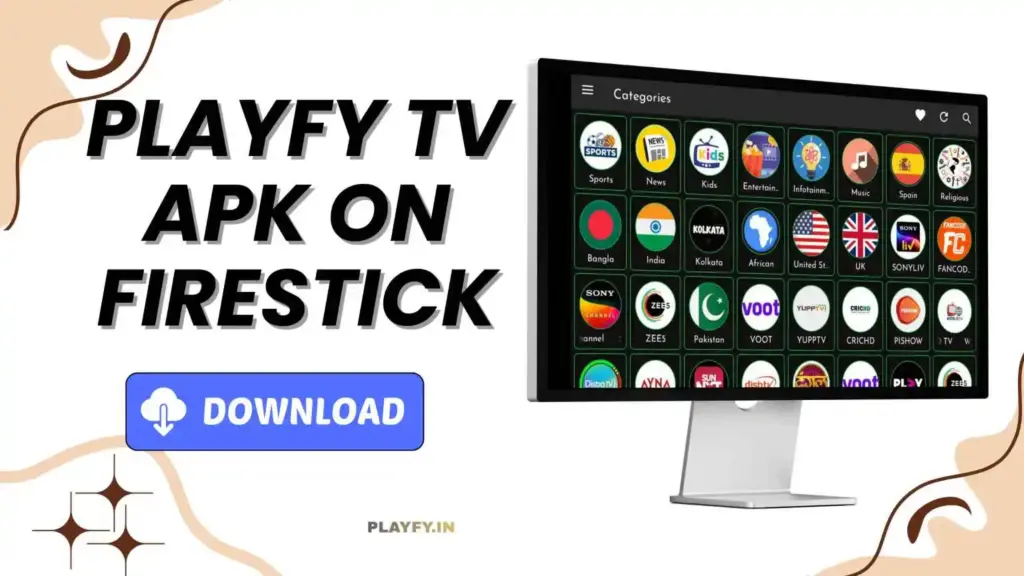
Why Use Playfy TV on Firestick?
Playfy TV is a no-cost live sports streaming app created by a third-party developer. Many people use it on Android phones, but those who own Smart TVs or Fire TV Sticks often choose to watch on their TVs. A bigger screen provides a better viewing experience, and the louder, clearer sound makes matches feel more realistic and enjoyable.
Installing the Playfy TV app on a Firestick is simple and user-friendly. The only downside is that the app does not appear on the official app store. However, this is not a problem because you can download the updated APK file directly from our website and install it on your TV by following the step-by-step tutorial provided in this guide.
Step-by-Step Guide to Download and Install Playfy TV on Firestick?
Getting Playfy TV APK on your Firestick is as easy as it sounds. We will use a Downloader app to download the latest version of the APK file directly onto your TV. If you carefully follow the step-by-step guide, you can install the app smoothly and enjoy streaming without confusion or errors.
Step 1: Start by switching on your Firestick device and connecting it to a reliable internet or WiFi network. Once connected, open the App Store, search for Downloader by AFTVnews, and install the app on your Firestick.
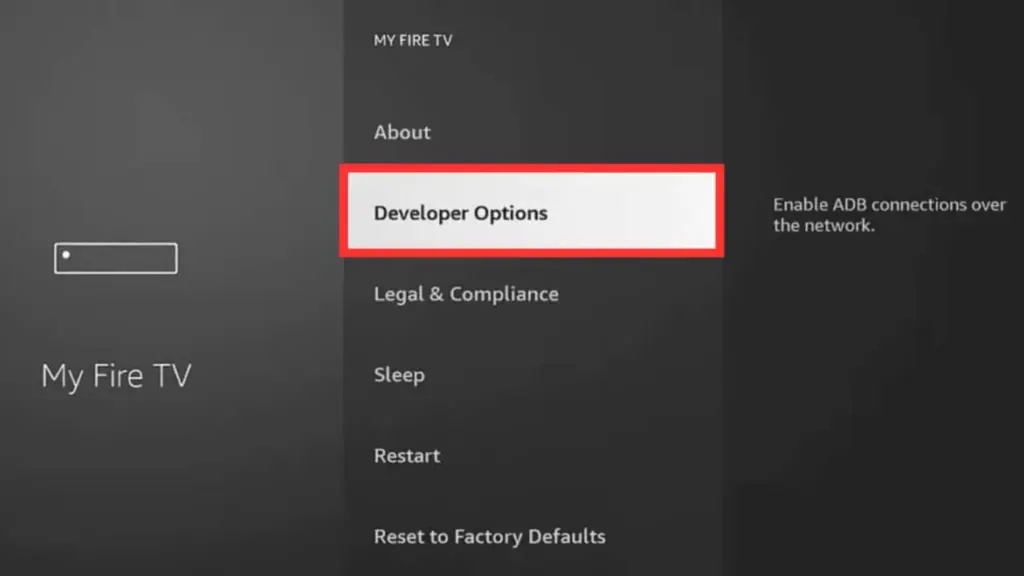
Step 2: Head over to your Fire TV Settings, then open the About section. Click your device name multiple times until the system notifies you that developer options have been activated.
Step 3: From the Fire TV Settings, scroll down and select My Fire TV. Then open Developer Options. Here, you will see the Unknown Sources option, which allows installing apps from outside the app store.
Step 4: Select Unknown Sources and enable permissions for the Downloader app so it can install third-party APK files.
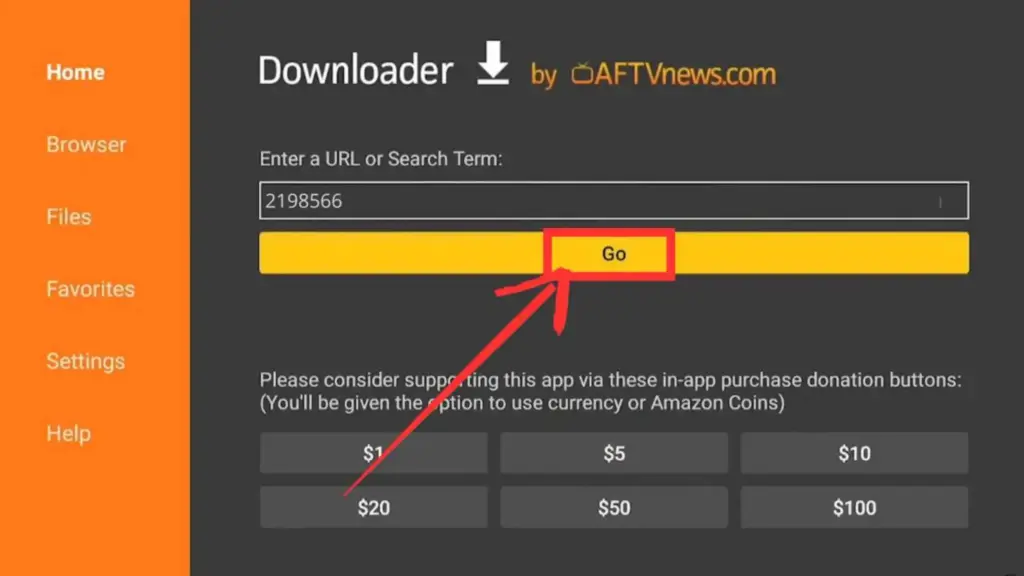
Step 5: Launch the Downloader app, click the URL box, type 2198566, and tap Go to start downloading the Playfy TV APK.
Step 6: After the APK file finishes downloading, tap the Install button displayed on the screen to complete the installation.
Step 7: Once installed, go back to the home screen, open your apps list, and launch Playfy TV on your Firestick.
There is no problem if you don’t want to rely on the Downloader app. You can first download the Playfy TV APK file on your smartphone. Next, transfer the APK file to your Firestick TV. Open a File Manager app, find the file, and tap on it to install.
Common Problems and Their Solutions
We have outlined simple and proven solutions to resolve the usual problems that occur in the Playfy TV app.
- If a video is not playing on Playfy TV, it is usually because the app uses external video sources. These links can sometimes be taken down due to copyright violations. When this happens, the video may stop loading. You can report the issue by clicking the Flag icon, and the developers often resolve it within two days.
- If videos take too long to load or buffer frequently on Playfy TV, check your internet speed first. Poor connectivity is the most common cause. Clearing the app cache can also improve performance. However, if everything seems fine and the issue continues, the app may be experiencing server overload, which typically resolves on its own after a short time.
- When the app only shows a loading screen after installation, it is often due to regional restrictions. The easiest solution is to use a VPN. Download a trusted VPN app on your TV, connect to a different server, and then reopen Playfy TV to access its content.
Conclusion
Playfy TV makes it possible to enjoy live matches, TV shows, and news without paying for costly streaming subscriptions. It provides free access live shows from varoius country that is usually available only on paid platforms. In this guide, we will walk you through a convenient method to install Playfy TV on your Firestick device.


